Appearance
Generate and inspect panels
Turn the current mould and layout into flat cut panels, then check their shape, allowance, labels, and any reported warnings before exporting.
Generate the current design
Start generation
Choose Panels > Generate Panels > uv mesh (faster) or press G while focus is outside a form field. The alternative xyz mesh (more accurate) uses the experimental physical sampler. The status bar names the running job.
Each request captures the current measurements, cloth, construction, layout, sampler, and Apply postprocess setting. The returned panels stay in this browser tab for inspection and export; the service retains no panel set.
Think of generation as starting a print job. The resulting panels describe the design sent for that job; edits made while it runs do not update that output. If you edit while generation runs, its result is discarded and View Panels stays disabled. Generate again to inspect panels for the revised design.
Read the result
On success, the status shows panels: N and the sampler used. The new panels, seam allowance, and warning list replace the previous set. The count depends on the design and layout settings.
On failure, a dismissible Panels couldn’t be generated notice appears. No replacement panel set was produced; correct the reported input, backend, rate-limit, or panel-budget problem and try again.
Open the viewer
Choose Panels > View Panels or press P. This command is disabled until a generated set exists. Select Back or press Escape to return to the design.
Opening or reopening the viewer, panning, and zooming use the returned panels locally and do not start another calculation.
Backend and account boundary
The 3-D mould and seam preview are calculated in the browser, but flattening panels needs the backend and will fail while it is unreachable. Signing in is not required for generation. An unsigned guest can currently generate up to 55 panels per request; the error message suggests a larger maximum panel width if the design would exceed that limit. Exporting has separate account rules.
Apply the optional postprocess
Apply postprocess is under Panels > Layout. It is off by default, lasts only for the current browser session, and applies when you next generate panels, including generation within a direct export. The pass straightens declared-straight edges, smooths the others, and writes the result into the returned flat panels used by the viewer and panel exports.
Experimental output
The current in-app help reports roughly 1–2% area loss on Traditional and Mitre layouts. The option does not change the browser-side 3-D seam or colour preview. Generate and inspect a fresh panel set after changing it.
Know when to generate again
Generated panels are a temporary output snapshot, not part of the saved design file. Starting or opening a design clears them. The app also clears the panels, warnings, and allowance after changes to:
- measurements, rig, edge shape, or profiles;
- fullness;
- cloth or construction settings;
- the selected layout or Apply postprocess setting.
Those changes disable View Panels until you generate again, even if an older generation finishes afterward. File > Export remains available: it calculates the current panels as part of the download when a matching generated set is unavailable. Changing panel colours, switching among 3-D, 2-D, and Heatmaps, and changing the preview heatmap do not invalidate generated geometry.
When the generated set matches the current design and generation settings, exports reuse it. For example, generating once, inspecting the panels, then exporting a prototype and cloth layout uses the same panel result for both. You can also export directly after opening a saved design; Generate Panels is needed only when you want to inspect or select panels beforehand.
New direct-export jobs default to XYZ mesh (more accurate), with a UV/XYZ choice in the File-menu export dialog. Matching generated jobs retain their original mode. Choosing another mode generates a separate export job, leaving the displayed panels unchanged. The Generate Panels menu and G shortcut keep their existing defaults.
The experimental panel postprocess is applied only during generation. When enabled, the returned postprocessed cut edges are what this viewer and the panel exports use. The browser-side 3-D layout and colour preview do not change.
Read the panel viewer
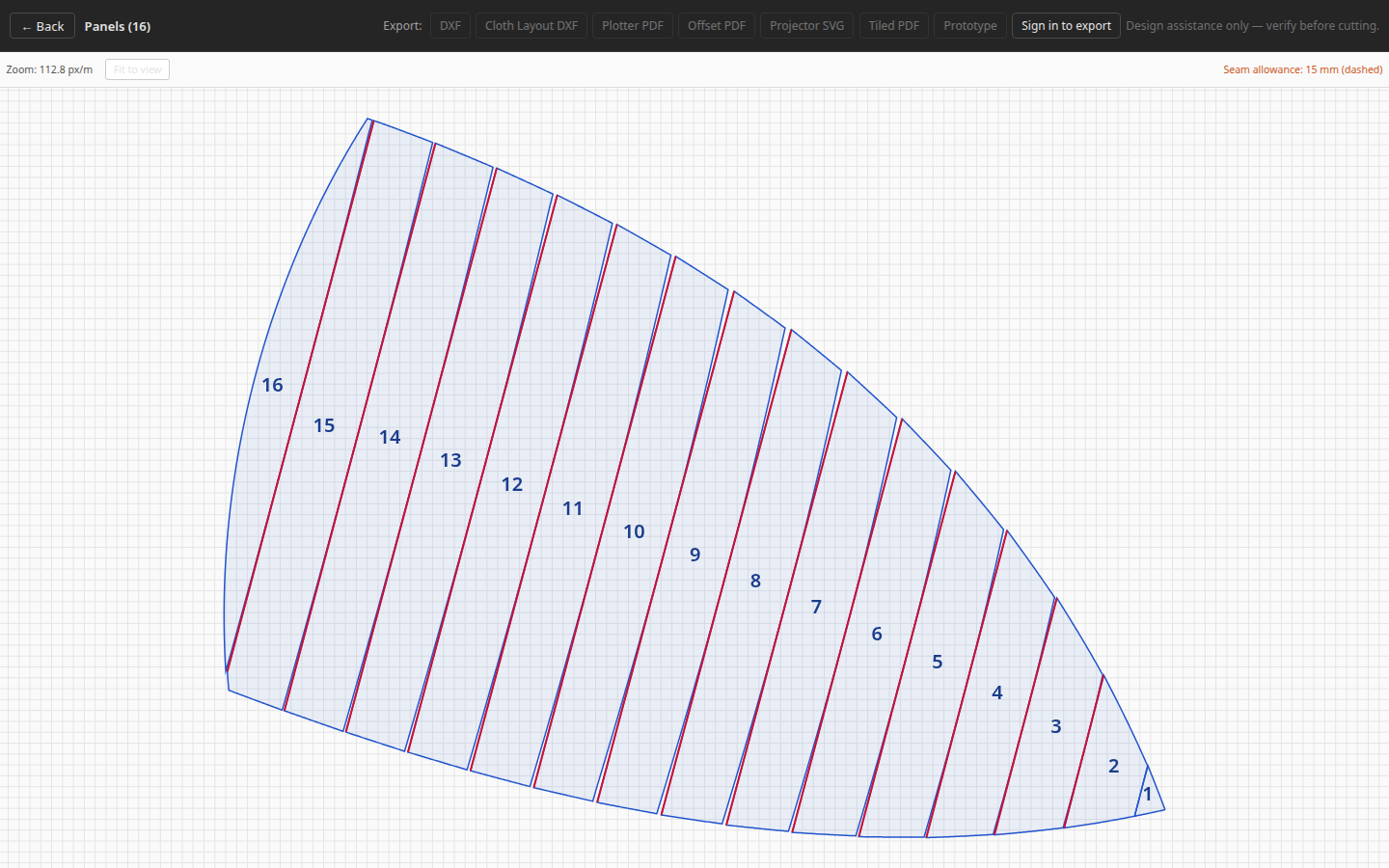
Generated panels are arranged by their seam-neighbour topology for inspection; this is not a nested cloth-roll layout.
- Back and export actions
- Zoom, fit, and allowance
- Flattened panels and display numbers
The viewer places panels beside their seam neighbours in an “orange peel on a table” arrangement. The gaps help expose the flat pieces; they are not a cutting plan or a promise that the panels fit the cloth roll.
| What you see | Meaning |
|---|---|
| Light grid | 100 mm spacing. It disappears when zoomed too far out to remain legible. |
| Blue outline and pale fill | The cut boundary of each returned flat panel. |
| Red edge | An edge the panel generator declares straight. A red label does not guarantee the experimental postprocess moved it. |
| Seam-allowance note | The configured allowance in millimetres. The current note says “dashed”, but current generated responses do not supply a per-panel allowance path, so no dashed outline is drawn. |
| Blue number | A short, contiguous display number. Its ordering depends on the selected layout. |
| Warning list | Non-fatal generation warnings grouped by code, count, panel identifiers, and value range. It appears only when the response contains warnings. |
The blue display number is the convenient reference printed on the canvas and in several exports. Warning details can instead name a topology-stable panel identifier; it is not necessarily the same text as the display number.
What the viewer does not show
The current viewer does not draw warp-direction arrows, match marks, seam IDs, or paired-seam annotations. Those details may be present in a specific export; do not infer them from the on-screen outline. Use the export overview to choose the output you need.
Pan, zoom, and reframe
- Drag with a mouse, pen, or touch pointer to pan.
- Use the mouse wheel or trackpad scroll gesture to zoom around the pointer.
- Read Zoom: … px/m for the current screen scale. It is a display readout, not a print scale.
- Select Fit to view to place the complete set back inside the canvas.
The export toolbar at the top uses this generated set. It links directly into the export workflow without changing what is drawn on the canvas.