Appearance
Boats and sail types
Start a design from the boat whose rig you want to use, then choose the sail type. Both choices load a complete starting shape and construction setup that you can edit in the normal workspace.
Choose the boat first
Open File > New. Step 1 groups the known boats by what the 3-D preview can show:
- With hull trace adds the boat's hull outline when Show boat is on.
- Rig only (no hull asset yet) still provides the boat's rig dimensions and shows its mast, boom, and forestay, but not a hull outline.
Selecting a known boat shows its I, J, P, E, and LOA dimensions, year range, production count, and hull-trace status below the list. Select Next → when the summary matches the boat you intend to use.
Use a custom boat
Choose + Custom boat... when the boat is not in the list. Enter I, J, P, E, and LOA in millimetres; every dimension must be greater than zero before Next → is available. The name is optional, and a custom boat appears as rig-only in the 3-D preview.
Use a boat file from Hull Lab
When you have built the hull yourself, choose + Local boat file... in the boat list, or the Open local boat file... button, and pick the boat file. The summary shows the file's I, J, P, E, and LOA plus a Local hull line naming the boat. The hull's traced lines render in the 3-D preview when Show boat is on.
Build and edit hulls in Hull Lab, then start a design from the saved boat file.
Checkpoint — Step 2 names the boat
After Next →, the dialog title includes the chosen boat name. Use ← Back if it is not the one you intended.
Choose one of the ready sail types
All nine cards currently shown in Step 2 are selectable and marked READY. Selecting a card closes the wizard and loads that sail type's starting shape, cloth, construction settings, and panel layout.
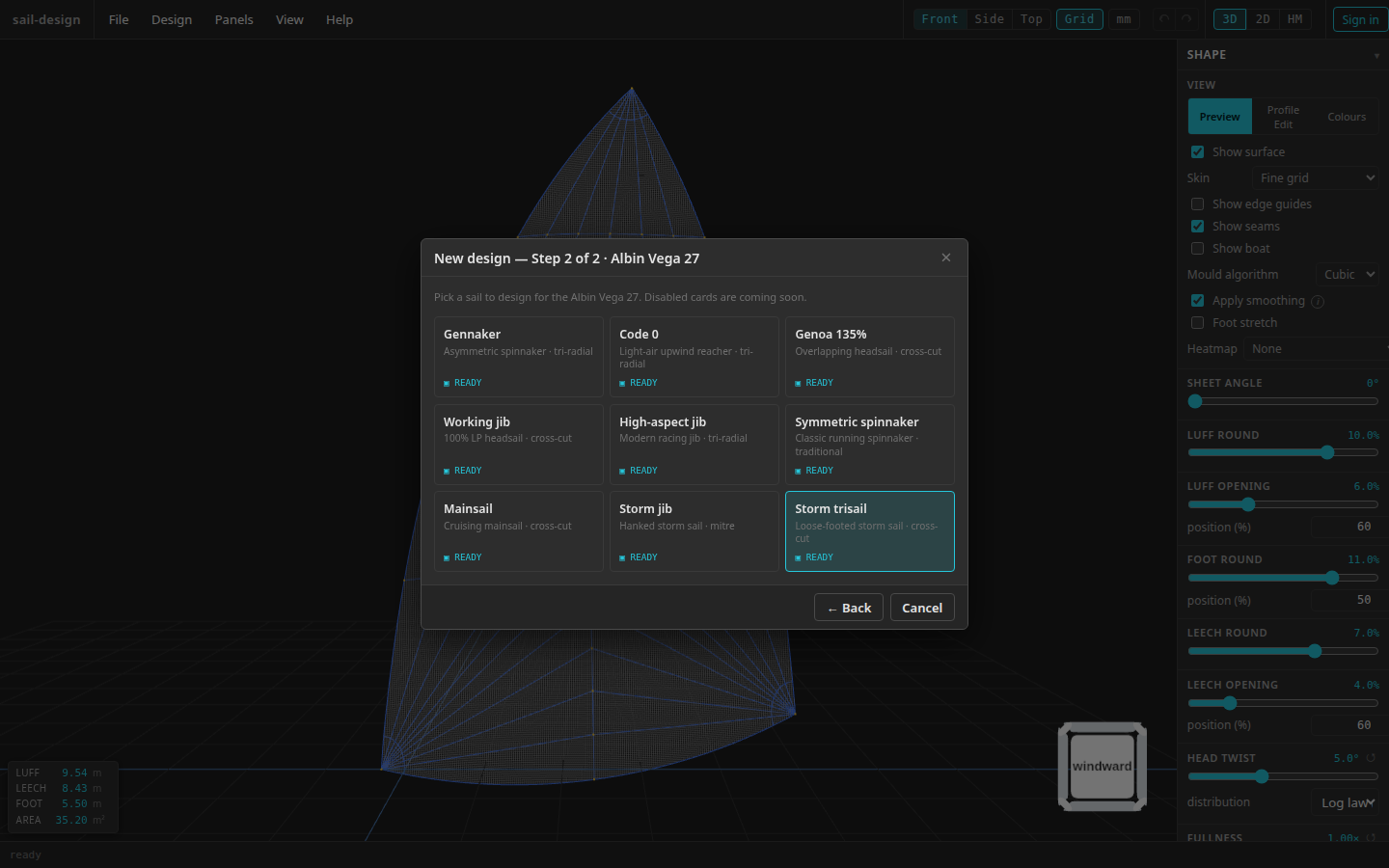
This example selected Albin Vega 27 in Step 1. Any of the nine READY cards creates an editable design; the first-sail walkthrough chooses Gennaker.
- Chosen boat carried forward from Step 1
- Nine selectable sail-type cards
- Back returns to the boat choice
The layout in the last column below is the one that becomes selected in Panels > Layout when the design opens.
| Sail card | Starting layout |
|---|---|
| Gennaker | Tri-radial |
| Code 0 | Tri-radial |
| Genoa 135% | Mitre |
| Working jib | Cross-cut |
| High-aspect jib | Tri-radial |
| Symmetric spinnaker | Traditional |
| Mainsail | Cross-cut |
| Storm jib | Mitre |
| Storm trisail | Mitre |
You can change the starting layout later under Panels > Layout. The sail type remains part of the design when you save it, and all nine types can be saved and reopened.
Checkpoint — the workspace receives both choices
After selecting a sail card, the dialog closes, the status returns to ready, and the fresh seam overlay appears for that type's starting layout.
Start again without losing work
Use File > New whenever you want another boat-and-sail combination. If the current design has unsaved changes, the app asks before discarding them. Save a JSON file first when you want to keep the current version.
Start hereMake your first sail Run a complete example from these two choices through save, panels, and DXF. Design the sailEnter rig dimensions Check or change the dimensions loaded from the chosen boat. Start from drawingsBuild a hull in Hull Lab Turn a lines drawing into a boat file you can open in File > New. Build the panelsCompare panel layouts Choose a different layout after the starting design opens.