Appearance
3-D preview
Use the 3-D workspace to orbit around the sail, inspect its surface and sections, and watch the mould measurements update as you edit the design.
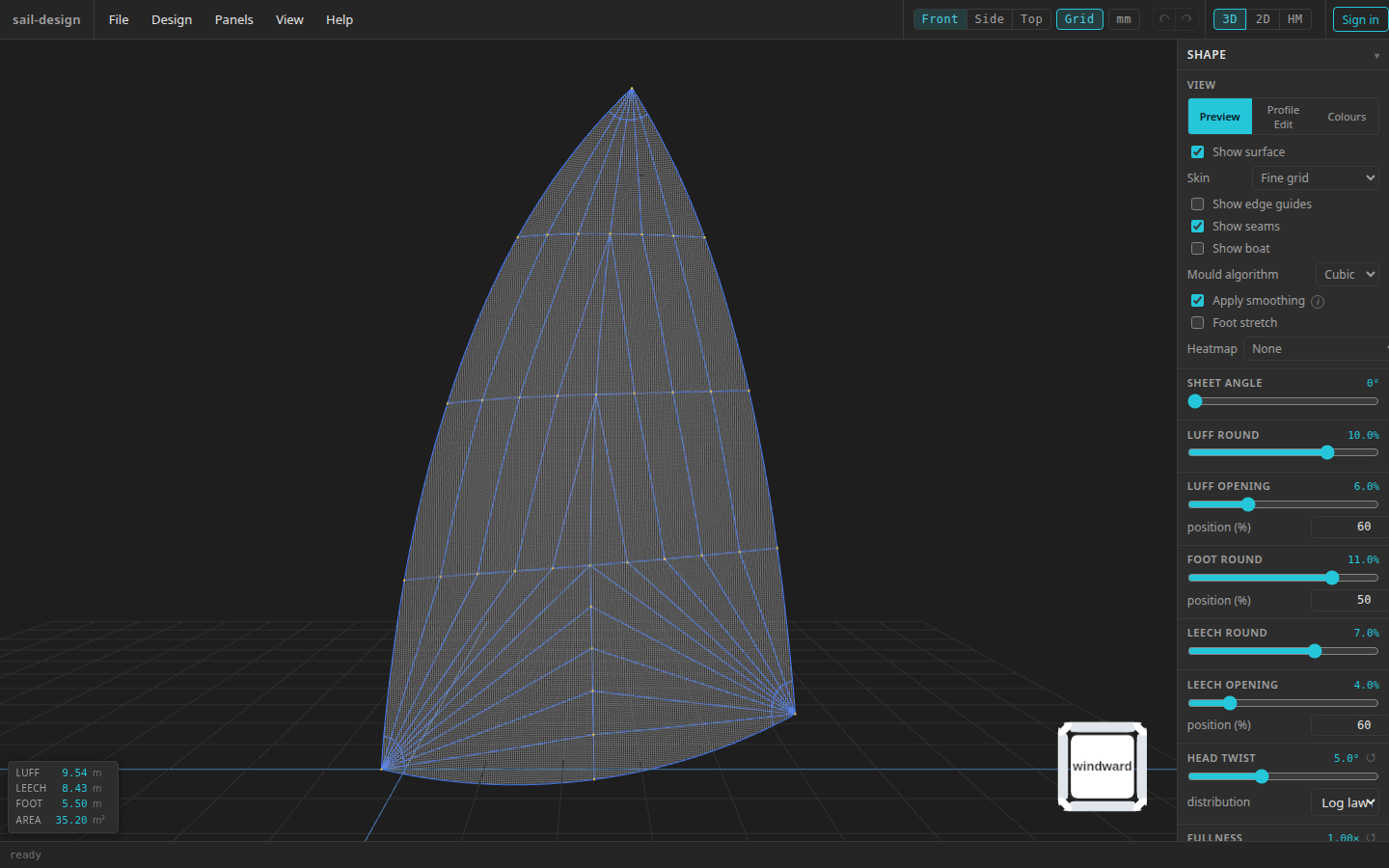
This example is an Albin Vega 27 gennaker. The preview, statistics, orientation cube, and Shape controls all remain visible in the 3-D workspace.
- Mould and visible overlays
- Live mould statistics
- Orientation cube
- Shape and view controls
Navigate around the sail
Switch to 3D
Click 3D in the top-right canvas switch. The 3-D camera is kept when you visit 2D or HM and return.
Orbit, pan, and zoom
- Drag left horizontally to orbit around the upright sail.
- Middle-drag to pan. Holding Space while left-dragging does the same; Ctrl/Cmd plus left-drag is also available.
- Scroll the wheel to zoom towards the point under the pointer. A new wheel gesture over a different part of the canvas uses that new point.
The orbit centre is sampled at the centre of the visible canvas when the drag starts. After an off-centre zoom, the sail therefore sweeps across the view instead of jumping back to the middle.
Use the orientation cube
Click a cube face to snap the camera, or drag the cube to orbit and tilt. Its faces name the sail directions: windward, leeward, luff, leech, head, and foot.
Snap and refit
Click Front, Side, or Top in the top bar. Each choice changes the orientation and immediately refits the whole mould in the canvas. The same actions are under View > 3D.
In Profile Edit, Cockpit provides an additional view from below the sail for reviewing depth and the transitions between sections.
View What it shows Front The sail face Side The camber profile Top A view down from the head side Use the view buttons for an immediate reset
The current R shortcut does not refit an already-rendered frame. It marks the camera to be reframed when the surface next rebuilds. Front, Side, or Top is the immediate reset.
For the complete key and pointer list, see Mouse and keyboard controls.
Read the mould statistics
The lower-left overlay reports four values from the latest successful surface build:
- Luff, Leech, and Foot are lengths along the curved boundaries, not straight chord lengths.
- Area is the area of the three-dimensional mould surface.
The mm / in pill switches these larger readouts between metres and square metres or feet and square feet. It is a display preference only: saved values, length editors, construction plans, and exports remain metric. Before the first successful build, a readout is shown as an em dash.
After a shape edit, use the footer as the completion check: ready means the new surface and readouts have been built. If a build fails, the banner and footer show the error; the canvas and readouts can still show the last successful build. Correct the input before judging the new shape.
Inspect a section in both dimensions
Choose Profile Edit in the Shape card to show the section curves over the 3-D surface. Click a curve to select it; the selected curve is highlighted and the matching profile controls open in the card. The same selected height is used by the 2-D designer.
Use Profiles and fullness for the profile-editing workflow, or 2-D designer when you want direct handles in an orthographic view.
Continue inspecting
Inspect the designViews and layers Show the surface, seams, boat, grid, sections, cloth skin, or a preview heatmap. Design the sail2-D designer Edit the same sail with orthographic handles and numeric input. Inspect the designHeatmaps Compare the diagnostic colour fields in their dedicated workspace.