Appearance
Profiles and fullness
Use Automatic controls for the overall sail shape. They coordinate depth, draft, entry, and exit across the profiles. Switch to Individual for small tweaks after reviewing that shape.
Starting a design
New designs start in Individual. Choose Automatic to use the coordinated workflow. Existing designs also keep their saved shape when opened; opening a file does not reconnect its profiles automatically.
Keep the shape controls separate
| Control | What it changes |
|---|---|
| Edge Round, Opening, Position | The luff, foot, and leech outline and bow |
| Automatic depth curve | Depth distribution from foot to head |
| Shared profile shape | Draft, entry, exit, and algorithm at every profile station |
| Individual Depth, Draft, Entry, Exit | A selected section of the sail |
| Mould algorithm, smoothing, foot stretch | How the sections become a continuous surface |
Depth is the amount of camber; draft is its position along the chord; height is the station's position up the sail. See Edge shape and twist and Mould controls for the other controls.
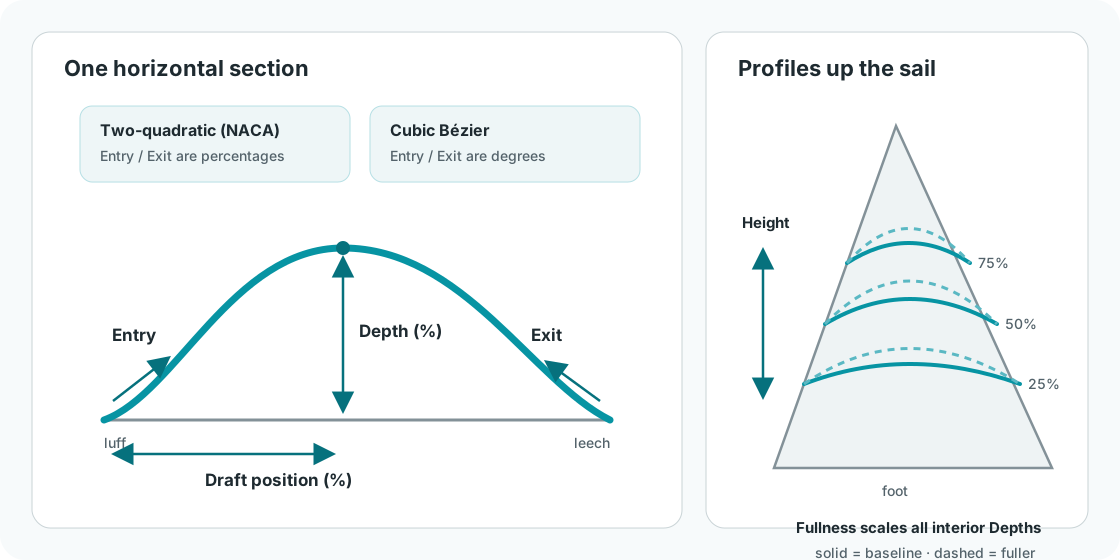
Section controls describe one profile. Automatic controls coordinate profiles up the sail.
Shape the sail together
Choose Automatic
Open 3D > Profile Edit, Design > Sail Shape, or the right-hand pane in 2D. All three show the same Automatic / Individual choice.
Selecting Automatic asks before replacing individual profiles. On first use, depth starts from the selected sail type's factory distribution; shared shape starts from the current section at that recipe's peak height. On later visits, the saved recipe is used. Cancel keeps the current shape. Replace profiles applies the recipe; Undo restores the previous shape and mode.
Adjust the depth distribution
Control Effect Peak depth (%) Depth of the recipe's interior peak as a percentage of the chord at its peak height Peak height (%) Moves that peak up or down the sail Lower rounding Makes the distribution below the peak fuller or flatter Upper rounding Makes the distribution above the peak fuller or flatter Share lower / upper rounding Uses the lower setting on both sides of the peak Rounding 100 follows the factory depth distribution. Increase it for more fullness on that shoulder; decrease it for less. The range is 50–400. Rounding is a curve control, not a percentage depth. The foot and head remain controlled by their boundary geometry; a boundary can be deeper than the interior peak, as in the Code 0 starting shape.
Each generated section still has a depth expressed as a percentage of its own chord. Equal depths in millimetres need not have equal percentages. Moving Peak height keeps the physical peak depth, so its displayed percentage changes with the chord at the new height.
Adjust the shared section shape
Shared profile shape applies one Draft position, Entry, Exit, and Algorithm across all profile stations. Head twist and edge geometry remain separate controls. Changing the section algorithm also changes the foot's curve form, so generated depths may change with it.
Inspect the complete surface
Use Front, Side, Top, and Cockpit in the 3D Profile Edit view. Check the surface between the named section lines and near the foot and head. The requested peak describes the recipe; the completed loft can exceed it or place its deepest point elsewhere. A smooth control curve alone does not guarantee a smooth completed mould.
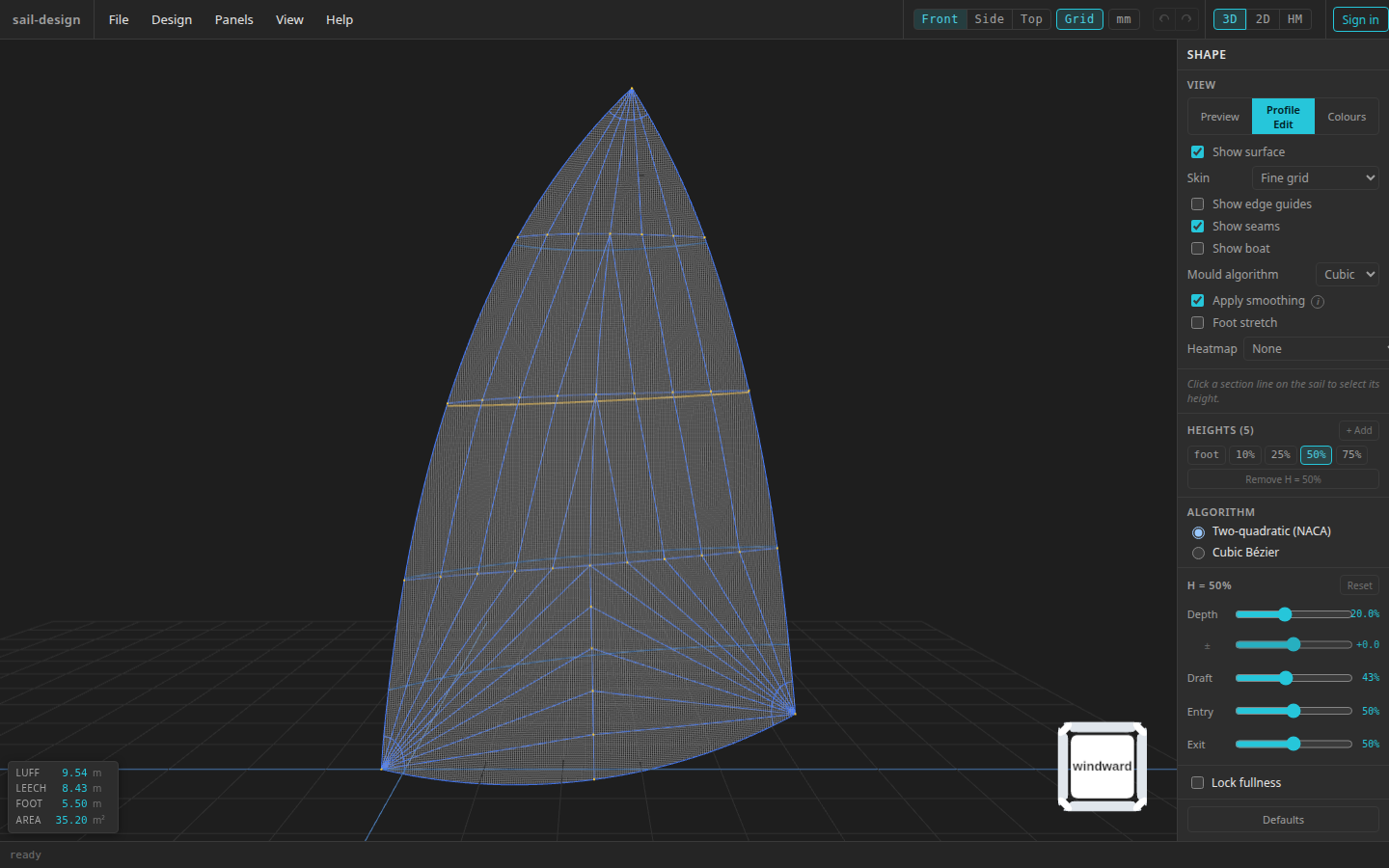
Automatic shaping in the existing Profile Edit workspace.
Adjust the curve in 2-D
In Side, or the Side viewport of All, a curve connects the existing profile points to the foot and head. Turn on Sections to see it. In Automatic mode, drag the peak handle to change depth and height, or drag the lower and upper handles to change rounding. The matching number fields remain in the right-hand pane. Focus a curve handle to use its arrow-key controls.
The displayed curve is a guide through the profile points. It is not a measurement of the deepest line on the finished 3D surface. Moving the peak does not move, add, or redistribute the individual stations. A sail with only one station on each side of the peak has limited control of each shoulder.
Individual section points, tangent handles, numeric fields, station changes, and resets are locked in Automatic mode in every view. Generated sections stay visible. Edge and corner controls remain available. See 2-D designer for pan, zoom, and handle navigation.
Make small individual adjustments
Choose Individual to unlock the profiles. This keeps the current generated shape and saves its automatic recipe. In 3D > Profile Edit, select a section line or height chip, then adjust Depth, Draft, Entry, or Exit. The ± slider provides fine depth adjustment. The 2D section detail pane and Design > Sail Shape table edit the same profiles.
Make one small change, inspect the neighbouring regions in 3D, and use Undo to compare. You are responsible for keeping the spanwise shape smooth when the profiles are unlocked. The app does not limit a manual edit to a safe nudge: even a small change can introduce unwanted curvature, especially with closely spaced stations. Large independent changes can produce severe distortion. Return to coordinated controls when changing the overall depth distribution.
Return to Automatic
Reconnecting asks before replacing individual depth, draft, entry/exit, and algorithm settings with the saved recipe. It does not fit that recipe to your manual edits. Undo restores those edits and Individual mode; Redo reapplies Automatic. Save the individual design first if you need a lasting alternative: opening another file clears the Undo history.
Save and reopen
Save retains the current mode, shape, and automatic recipe. Older files without a mode open in Individual without regenerating profiles. Earlier experimental recipes retain their own units and limits; Reset curve explicitly replaces them with the current factory-based recipe. Undo restores the previous recipe.
Choose the section algorithm
| Choice | Entry / Exit controls | Behaviour |
|---|---|---|
| Two-quadratic (NACA) | 5–95% | Holds the requested maximum Depth and Draft; Entry and Exit reshape the two sides |
| Cubic Bézier | 0–89° | Uses tangent angles; its deepest point can differ from the requested Depth or Draft |
Two-quadratic 50/50 is the NACA baseline. Higher Entry or Exit values make that end steeper; lower values make it flatter. Automatic mode provides shared controls. Individual mode provides selected-section controls. Section construction and finished-surface interpolation are separate: the mould settings determine how the surface joins them.
Shape the foot profile
The foot chip edits a boundary, so its controls remain available in Automatic mode. Its Depth controls Foot Opening and its Draft controls Foot Position. It does not expose interior Entry or Exit controls. Adjusting the foot can regenerate automatic depths because the boundary has changed.
Add, remove, and reset heights
These individual actions require Individual mode. In Profile Edit, use + Add for an interior height above 0% and below 100%, or select a height and use Remove H = …%. New heights start with interpolated values. Adding more profiles is not a guarantee of smoother lofting.
Reset restores only the selected height's canonical values. There is no pane-wide profile reset. Use Undo to reverse recent changes, or File > New to start a fresh factory design for your boat and sail type.
In Automatic mode, Reset curve restores the factory depth recipe and Reset shared shape restores the factory shared shape. These are separate, undoable actions and do not redistribute station heights.
Use the full Sail Shape table
Open Design > Sail Shape to inspect all profile rows together. Automatic mode shows their generated values with individual editing disabled. Individual mode enables exact values, + Height, and row removal. Changes are live; Done closes the dialog. Switching interfaces does not change the mode.
Symmetric spinnaker constraints
For Symmetric spinnaker, interior Draft stays at 50% and Entry and Exit stay mirrored in the shared controls, Profile Edit, 2-D section detail, and Sail Shape table. In Individual mode, change Entry to adjust both ends; Draft and Exit are locked. Foot Position stays at 50%, luff and leech Round, Opening, and Position move together in Preview, Sail Shape, and the 2-D edge editor, and Head twist stays at 0°.
In Design > Sail Shape, both Luff chord (mm) and Leech chord (mm) remain editable, but changing either sets both to the same length. Each chord must be longer than half the foot chord. The sail's tack and clew sit at equal height on either side of the head, detached from the rig's tack anchor. In 2-D, moving the clew moves the tack symmetrically too.
If you open an older symmetric design with unequal chords, choose whether to keep it as a Symmetric spinnaker by making the leech chord match the luff, or keep its measurements by converting it to a Gennaker. Either choice changes the opened design; save it to keep the conversion.
Continue to the mould
After the overall shape and any individual adjustments look right, review Mould controls, then inspect the seams and generated panels before exporting.