Appearance
Panel colours
Use the Colours card to preview a Tri-radial sail in white, bands, checks, radial rings, or individually assigned panel colours.
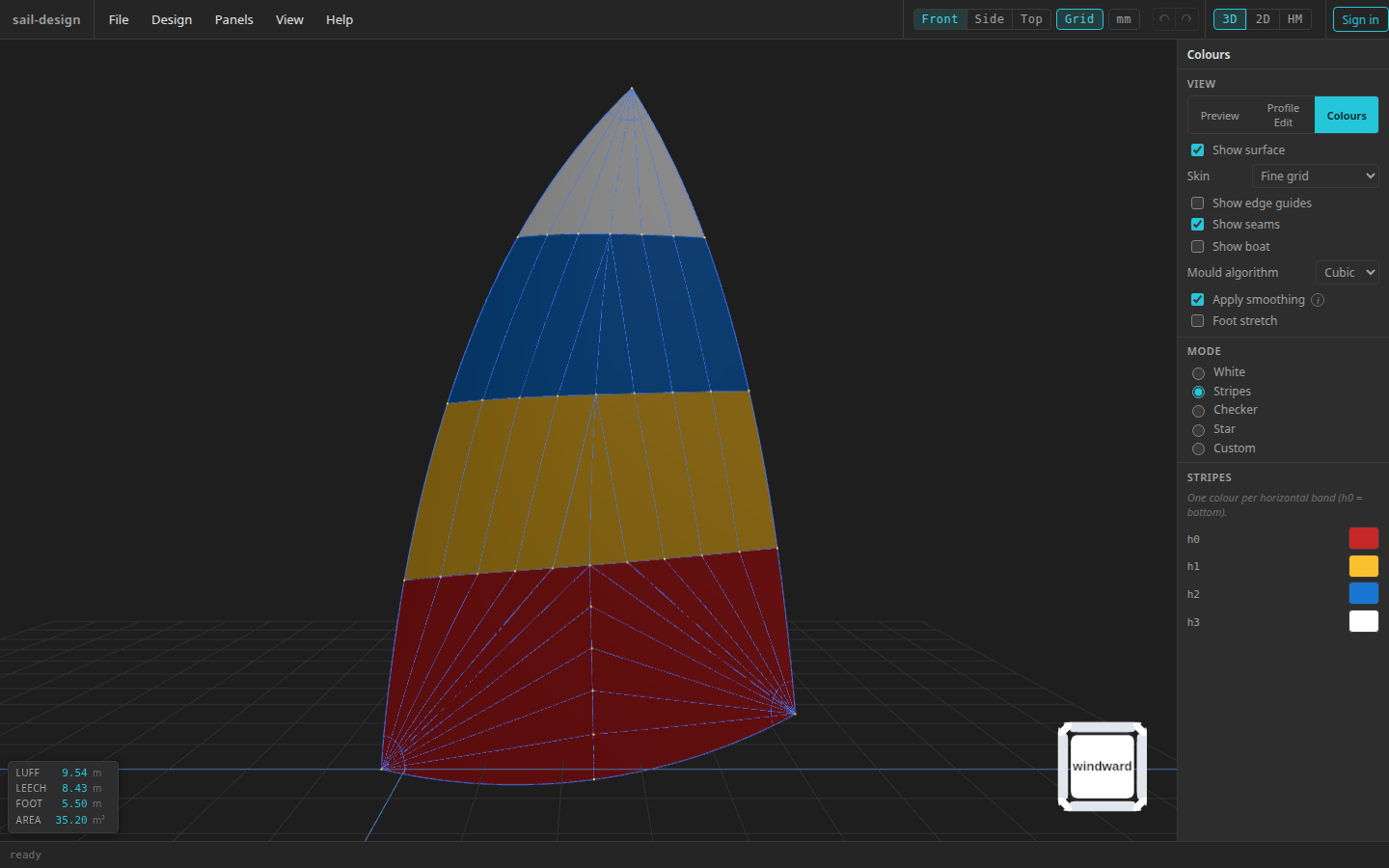
Stripes assigns one colour to each horizontal band; h0 is the bottom band.
- Colours card mode
- Five assignment modes
- One swatch per horizontal band
Preview colours without generating panels
Open the Colours mode beside Preview and Profile Edit. The app builds a lightweight Tri-radial panel mesh entirely in the browser and paints that mesh on the 3-D mould. You do not need a backend connection, a generated flat panel set, or an account.
This preview-tier mesh is separate from the flat panels created by Generate Panels. It is suitable for choosing a scheme, but it does not prove that flattening or an export will succeed.
If you change to another layout while the Colours card is open, the card returns to Preview. The colour choices remain stored and reappear if you switch back to Tri-radial.
Choose an assignment mode
| Mode | Current assignment |
|---|---|
| White | Uses the default off-white sail appearance and shows no swatch list. |
| Stripes | One colour per horizontal band; h0 is the bottom band. |
| Checker | Two colours, A and B, alternate across the band-by-radial-layer grid. |
| Star | One colour per radial layer, making concentric rings from the corner-fan apex toward the luff and leech. |
| Custom | One swatch for each current panel, listed by its short display number. |
Select a swatch to choose White, Black, Red, Orange, Yellow, Green, Blue, or Navy. A band, layer, or panel without a saved choice uses the default off-white.
Read loading and mismatch messages
- Computing panels… means the browser is rebuilding the preview-tier panel mesh after the card opened or the shape changed.
- Waiting for panels… means there is no preview mesh to populate the non-White picker. It does not ask you to run Generate Panels; wait for the browser calculation, or check the error banner if calculation failed.
- In Custom mode, new panels (white) reports current panel identifiers with no saved custom choice. Saved colours no longer apply reports saved identifiers that are absent from the current topology.
Changing seam heights, maximum panel width, or other topology inputs can add or remove panels. The Custom notice preserves the choices that still match and leaves new panels off-white instead of guessing replacements.
Save and reopen the scheme
Colour edits mark the design as changed. File > Save or Save As stores the active mode and its palettes in the local design JSON. Opening the file restores them; older files without a colours block open in White mode.
Colours are render metadata. Editing them does not clear an already generated flat-panel set, and they are not part of the measurement/construction undo history.
Understand the export effect
The palette changes the 3-D preview. Of the current exports, only Cloth Layout DXF uses the resolved panel colours: when started from the panel-viewer toolbar, it nests each colour bucket on its own roll-width strip and writes a separate DXF layer for that colour.
File-menu difference
The current File > Export > Cloth Layout DXF path does not send the colour map, so it nests the panels as one uncoloured group. Open the generated panel viewer and use its Cloth Layout DXF action when colour grouping matters. Other panel formats do not change their geometry or grouping based on this palette.