Appearance
Cloth Layout DXF
Download a full-size CAD layout in which the generated panels are placed on roll-width cloth strips instead of overlapping at their local origins.
Choose how colours are grouped
Choose File > Export > Cloth Layout DXF (nested on roll) or Cloth Layout DXF in the panel-viewer toolbar, then choose annotation options. Both use the active panel colours, including Tri-radial Stripes, Checker, Star, or Custom schemes. The default scheme produces one off-white group.
A matching generated panel set is reused. Without one, the File-menu action calculates panels and nests them within the same export request.
The options dialog starts Cloth width at the saved roll width from Panels > Cloth Properties. You can change it for this export without changing the saved design or regenerating its panels. The minimum is Max panel width plus Seam allowance plus 10 mm; a smaller entry is raised to that minimum. The app chooses the nesting layout within its current calculation limit.
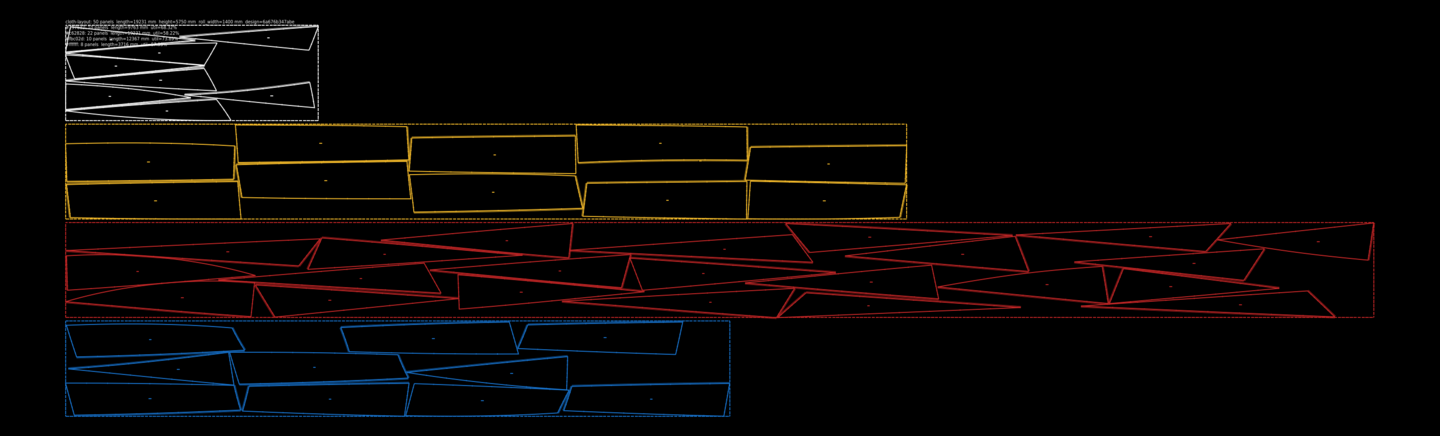
Viewer-toolbar export of the Albin Vega 27 gennaker example in Tri-radial Stripes mode; each colour is nested independently.
- One roll-width strip per colour
- Panels placed within the roll outline
- Separate colour layer
Read the downloaded layout
The download uses the design filename with a -panels-cloth-layout.dxf suffix, or panels-cloth-layout.dxf for an unnamed design. It is a millimetre DXF at full size. Unlike Panel DXF, its coordinates are the actual placements chosen for the cloth layout.
For compatibility with saved layouts, the file header retains sail-design cloth layout as an internal format marker and names MakeSail separately. The marker is not a second product name.
Each colour group has its own DXF layer and roll outline. Colour strips are stacked with a 50 mm space between them in the combined drawing. Within a strip, the file contains the placed panel boundaries, owned seam-allowance lines, match marks, warp marks, panel labels, and summary metadata. A layout with no colour map has one off-white strip.
The options dialog selects sail panels by default. You can also choose individual corner patches, batten reinforcement and pocket strips, and enabled reef patches and eyelet pieces; those accessories are unselected by default. For a separate corner-patch-only file, use Corner Patches DXF.
The saved file is also the required source for Projector Workspace. Keep the exact DXF with the job so the projector can reopen the same nesting and restore its per-roll page.
Verify the roll layout
Confirm millimetre units and layer colours
Open the file without rescaling. Confirm that the expected colour layers and strip outlines are present. The default colour scheme has one off-white group.
Read each strip separately
Use the CAD layer list to isolate one colour. Treat each outlined strip as a separate length of cloth; the 50 mm space only separates the strips in the combined drawing.
Check placement and allowance marks
Confirm that every generated panel number appears once, stays inside its roll outline, and carries the expected allowance, match, and warp marks.
Measure before cutting
Check the roll width and a known panel dimension in CAD, then verify the downstream plotter or cutter. The DXF has no printed calibration rectangle.
A long-running export can fail
The File-menu status bar changes to Calculating nested layout — this can take a minute or two… when the action starts. The panel viewer shows Cloth Layout DXF… and pauses the other export buttons. If the calculation queue is full or the operation times out, wait and retry; no usable file was downloaded.